




 By Shari Cooke
•
27 Oct 2026
•
11 min read
•
Design & Print Production
By Shari Cooke
•
27 Oct 2026
•
11 min read
•
Design & Print Production
To set up a booklet for printing, choose a total page count in multiples of four, set your document to the finished trim size with 0.125″ bleed and a 0.25″ safe margin, and export single pages in reading order as a print-ready PDF. Your printer handles imposition, so your job is clean files: 300 DPI images, embedded fonts, and CMYK color. Here’s how to get each step right, plus a preflight checklist to catch errors before you upload.
How many pages does a booklet need?
For saddle-stitched booklets, your page count must be a multiple of four. Each sheet of paper is folded in half to create four pages, so common counts are 8, 12, 16, 20, and 24. Most printers, including us, consider 8 pages the minimum for a booklet.
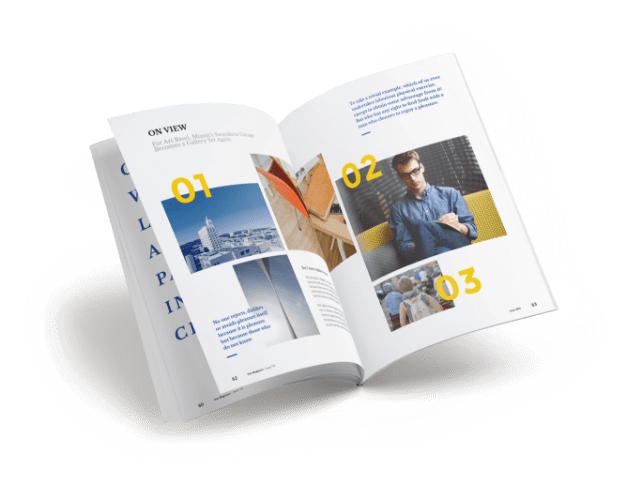
If your content falls short of a multiple of four, add pages with a purpose:
- Notes pages
- Section dividers
- A table of contents or index
Spiral, comb, and twin loop bindings don’t need multiples of four, since each page is punched individually.
You’ll also work with three page views during layout:
- Single pages: One page per document page in reading order (1, 2, 3, 4).
- Reader spreads: Pages as they appear when the booklet is open (2 and 3, 4 and 5). Useful for designing across a spread.
- Printer spreads: Pages paired for the press so they land in order after folding and trimming.
Unless your printer asks otherwise, send single pages in reading order. This keeps your booklet page numbering accurate and leaves imposition to the experts.
What size and paper should a booklet be?
The most common booklet sizes are:
- 5.5″ x 8.5″ (half letter), great for event programs and pocket guides
- 6″ x 9″, a popular choice for manuals and handbooks
- 8.5″ x 11″, ideal for catalogs, reports, and training workbooks
Interior pages typically use text-weight paper (70 lb, 80 lb, or 100 lb text). Covers use heavier cover stock (80 lb or 100 lb cover) for durability. Keep in mind that heavier paper adds thickness, which affects spine width and creep (more on both below). For more on paper weights and finishes, see our complete guide to booklet printing.
How do you set up trim, bleed, and safe margins?
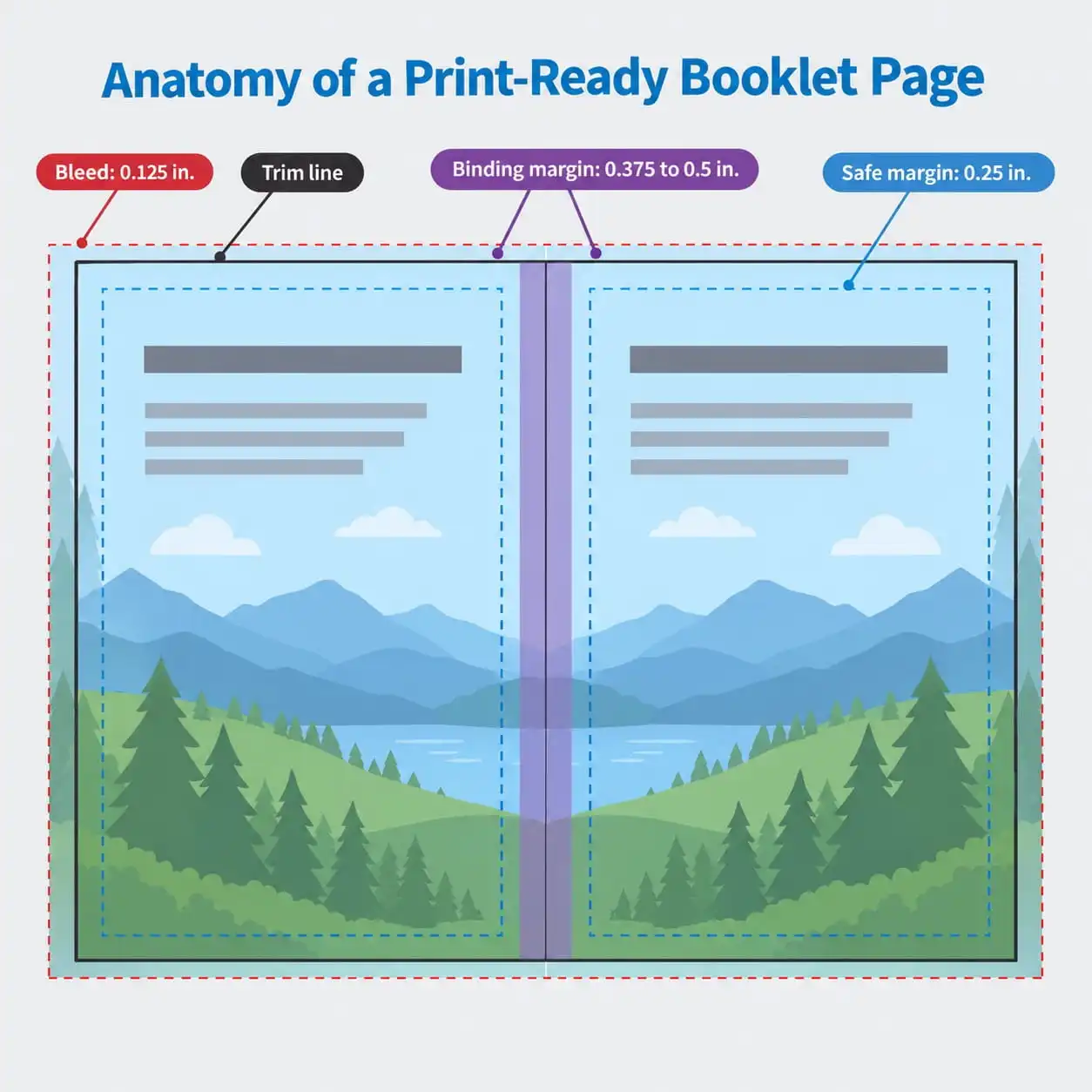
Start by setting your document to the finished trim size. Then add these three zones:
- Bleed (0.125″): Extend any background, photo, or color block that touches the edge 0.125″ past the trim line on every side. This prevents thin white slivers after cutting.
- Safe margin (0.25″): Keep text, logos, and key content at least 0.25″ inside the trim.
- Binding margin (0.375″ to 0.5″): Give spiral, comb, and perfect bound projects extra room on the inside edge so nothing disappears into the binding.
Use the same page size and orientation for every interior page. If you want a foldout or mixed orientation, talk to your printer first.
How cover pages count: With a self-cover saddle-stitch booklet, the cover prints on the same paper as the interior and counts toward your total. With a separate cover stock, you’ll have four cover panels: outside front, inside front, inside back, and outside back. Perfect bound covers are a single wraparound file, separate from the interior page count.
What is booklet imposition, and do you need to do it yourself?
Imposition is the arrangement of pages on large press sheets so they fall in the right order once folded and trimmed. In a saddle-stitched booklet, the outermost sheet pairs your first and last pages, the next sheet pairs the second and second-to-last, and so on to the center spread.
In most cases, you don’t need to do this yourself. Send single pages in reading order and your printer will impose them. If you’re asked for printer spreads, here are the patterns:
- 8 pages: Sheet 1 outside 8 and 1, inside 2 and 7. Sheet 2 outside 6 and 3, inside 4 and 5.
- 12 pages: Sheet 1: 12 and 1, 2 and 11. Sheet 2: 10 and 3, 4 and 9. Sheet 3: 8 and 5, 6 and 7.
- 16 pages: Sheet 1: 16 and 1, 2 and 15. Sheet 2: 14 and 3, 4 and 13. Sheet 3: 12 and 5, 6 and 11. Sheet 4: 10 and 7, 8 and 9.
- 24 pages: Start with 24 and 1, 2 and 23, then work inward until you reach the center spread (12 and 13).
What about creep? In thicker saddle-stitched booklets, inner pages push outward slightly past the outer ones. After trimming, content near the outside edge of center pages can get closer to the cut. Generous margins solve most of this. For high page counts, ask your printer about creep adjustment.
What file settings does a print-ready booklet need?
A print-ready booklet file needs high-resolution images, embedded fonts, and CMYK color. Here’s what to check.
Images
- Photos: 300 DPI (dots per inch) at final print size
- Line art and 1-bit graphics: 600 to 1200 DPI
- Logos and illustrations: vector files whenever possible
- Avoid enlarging raster images more than 110% to 125% of their original size
Fonts
- Embed all fonts when you export your PDF
- In Adobe InDesign, use the Preflight panel in InDesign to catch missing fonts
- If you send native files, package them with fonts and linked images
- Outline fonts only for small amounts of display type, not body copy
Color and PDF format
- Convert all color to CMYK (cyan, magenta, yellow, black) using U.S. Web Coated SWOP v2 or your printer’s recommended profile
- Only include spot colors if you’re actually printing with them
- Export as PDF/X-1a (flattens transparency) or PDF/X-4 (keeps live transparency, if your printer supports it)
- Set small text to 100% black, not rich black, to avoid blurry type
- Double-check overprint settings so black and spot colors don’t create unintended knockouts
How do you set up a booklet cover?
Your cover setup depends on your binding.
Saddle stitch: The cover matches your interior page size, with 0.125″ bleed on all sides.
Perfect bound: Build one wraparound spread with the back cover, spine, and front cover, plus 0.125″ bleed around the outside. To estimate spine width, divide your page count by two (each sheet holds two pages), then multiply by the paper’s caliper. For example, 200 pages on paper with a 0.004″ caliper gives you 100 sheets x 0.004″ = 0.4″ spine. Your printer may also provide a spine calculator or template.
A few design rules keep covers looking sharp:
- Keep titles, logos, and small text 0.25″ to 0.375″ from trim edges and away from the spine hinge
- Don’t run fine type across folds, where it can crack
- Use strong contrast on spine text so it’s readable on a shelf
- Put your title, subtitle, and brand on the front. Use the back for summaries, contact details, testimonials, or a barcode.
For finishes, heavier stocks add durability. Gloss, matte, or soft-touch lamination and spot UV can make covers stand out and resist scuffs.
How do you choose the right binding for your booklet?
Choose your binding based on how your audience will use the booklet, how long it needs to last, and how many pages it holds. Here’s how the options in Mimeo Print compare:
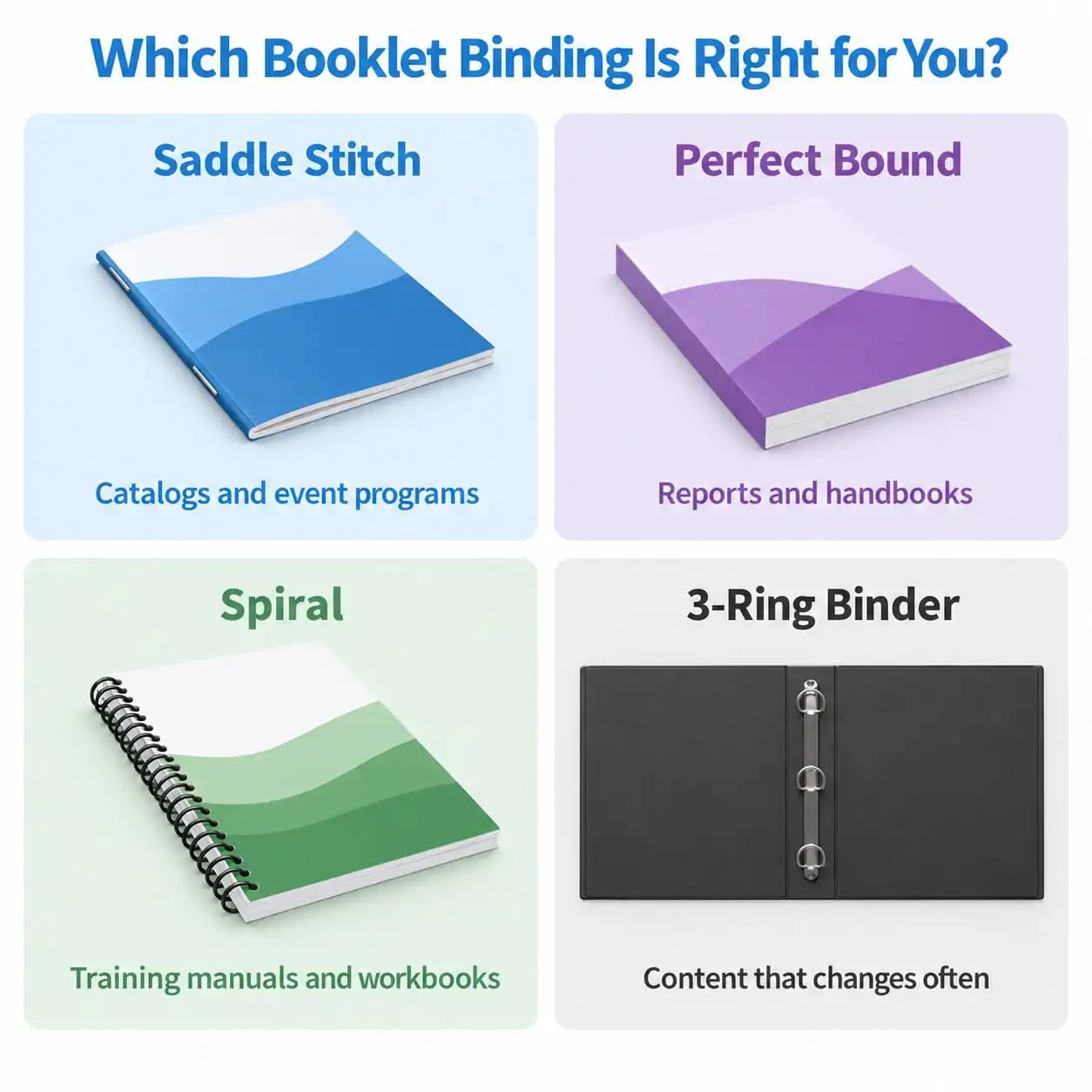
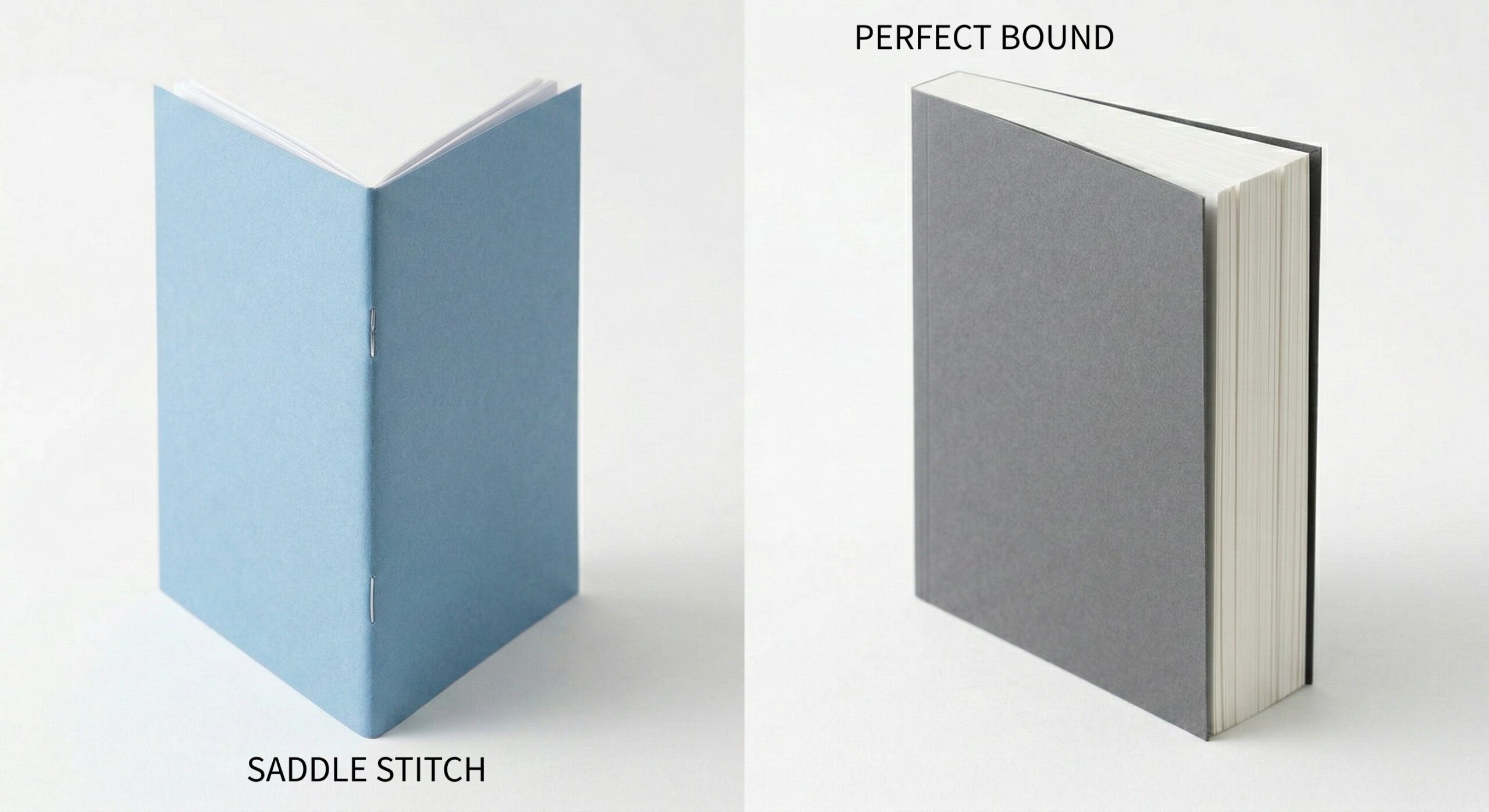
- Saddle stitch: Best for catalogs, event programs, and marketing booklets with lower page counts. It’s cost-effective and lies relatively flat. You can build saddle-stitched booklets directly in Mimeo Print by selecting “booklet” from the document menu.
- Perfect binding: Best for thicker reports, handbooks, and anything that needs a professional, paperback-style finish with a printed spine. We offer perfect binding through special instructions.
- Spiral: Best for training manuals and workbooks that get heavy use. It’s durable and comes in black, white, blue, or clear. Pages don’t lie perfectly flat as a spread, so avoid designs that cross the center.
- Twin loop wire: A polished look in black or silver, with more durability than comb binding. The wires can bend with rough handling.
- Comb: A budget-friendly step up from staples for internal documents that won’t see a lot of wear.
- D-ring or O-ring binders: Best when content changes often, since you can add or swap pages. D-rings hold more and let pages lie flat.
For spiral, comb, and twin loop, you can add a clear, matte, or frosted front cover with a black, white, or navy back, or choose card stock covers for a more finished feel.
Not sure which binding fits your project? Explore our booklet printing and binding options to see paper, cover, and finishing choices for your next run.
What should you check before sending a booklet to print?
Run this preflight checklist before you upload. For a deeper look at the tools designers use, see this preflight guide for designers from PRINTING United Alliance.
- Page count: A multiple of four for saddle stitch, with any blank pages placed on purpose
- Size and bleed: Trim size matches your spec, with 0.125″ bleed on every edge that prints to the edge
- Safe margins: Key content sits at least 0.25″ inside the trim, with extra room on the binding edge
- Images: Photos are 300 DPI at size and line art is 600 to 1200 DPI
- Fonts: All fonts embedded, with no substitutions
- Color: Everything is CMYK or an approved spot color, with no stray RGB elements
- Blacks: Small type is 100% K and large solids use a printer-approved rich black
- Transparency: PDF/X settings match your printer’s requirements
- Page order: Single pages in reading order, unless printer spreads were requested
- File names: Clear and versioned, like ProjectName_Booklet_Interior_v03.pdf
Common mistakes and quick fixes:
- Missing bleed: Extend backgrounds 0.125″ past the trim line.
- Blurry images: Replace anything under 300 DPI at final size.
- Wrong page count: Add purposeful pages or switch to a binding that doesn’t need multiples of four.
- Content too close to the binding: Widen your inside margins.
- Fuzzy small text: Change rich black body copy to 100% K.
When you upload to Mimeo Print, you’ll see a real-time virtual proof of your booklet, so you can check page order, crossovers, and cover placement before you order.
How do you print a booklet in Word for a quick proof?
Microsoft Word works well for a fast, in-house mockup to check content flow and booklet page numbering. Here’s how:
- Set the page size: Go to Layout > Size and choose your finished size, such as 5.5″ x 8.5″. Word doesn’t handle bleed well, so skip it for a mockup.
- Turn on book fold: Go to Layout > Margins > Custom Margins, then under Pages, choose Multiple pages > Book fold. Word arranges your pages into printer spreads automatically. Microsoft’s booklet setup instructions cover a few extra options, like splitting long documents into multiple booklets.
- Add a gutter: Increase the Gutter value to protect the inside margins.
- Print double-sided: Go to File > Print and choose Print on Both Sides. Because book fold places two pages side by side on a landscape sheet, choose Flip pages on short edge. If the backs still print upside down, switch to long edge.
- Check the order: Fold your proof and confirm page 1 pairs with the last page and the center spread lines up.
Use Word for content checks only. For production, export a print-ready PDF from a design tool like Adobe InDesign so you get proper bleed, color management, and imposition.
Booklet Setup FAQs
What is the standard bleed for booklet printing?
The standard bleed is 0.125″ on every side. Any image or background that touches the edge of the page should extend into the bleed area.
Do booklet pages have to be in multiples of four?
Yes, for saddle-stitched booklets, because each folded sheet makes four pages. Spiral, comb, and twin loop bindings don’t have this requirement.
Should I send my printer single pages or spreads?
Send single pages in reading order unless your printer specifically asks for printer spreads. Most printers impose pages for you.
What resolution do images need for booklet printing?
Photos need 300 DPI at their final printed size. Line art and 1-bit graphics should be 600 to 1200 DPI.
What PDF format is best for printing a booklet?
PDF/X-1a and PDF/X-4 are the most widely accepted. Check which one your printer prefers, especially if your design uses transparency.
Ready to print your booklet?
Once your files pass preflight, you’re ready to print. With Mimeo, you upload your PDF, preview it in real time, and order only what you need. Place your order by 10pm and get it delivered as early as 8am the next day, anywhere in the world through our global print hubs. Start printing your booklets with Mimeo.
Key things to remember
- Plan your page count in multiples of four for saddle-stitched booklets.
- Add 0.125″ bleed and keep key content 0.25″ inside the trim.
- Send single pages in reading order and let your printer handle imposition.
- Use 300 DPI images, embedded fonts, and CMYK color.
- Calculate perfect bound spine width from sheet count, not page count.
- Match your binding to how your audience will use the booklet.
- Run a preflight check before every upload.
What you should read next

Shari Cooke
Director of Customer Service
Shari Cooke is Director of Customer Service for Mimeo Business US, with more than 12 years at Mimeo and a background in graphic design that gives her a unique eye for both the creative and operational sides of print. Based in Memphis, she leads the team that keeps customer orders running smoothly from file to delivery. Her posts help businesses avoid common print pitfalls and get professional results, drawing on years of solving real customer challenges firsthand.

 Mimeo Print
 Mimeo Digital for Participants
 Mimeo Marketplace
 PrintX
 Mimeo Photos